An easy way to create Loading Bar!

“People count up the faults of those who keep them waiting”
Seems like I kept them busy decoding this loading bar 😀

Recently, while browsing I landed on a page on StackOverflow.com where people were discussing how I implemented this loading bar on www.iogoos.com I could sense a lot of confusion in the discussion so thought I would take the mystery out as I love to share best practices. Here’s how you can create a loading bar in a few steps…

Things You’ll Need

  1. A nice loading image: If you are good at creating animated GIF images that are nice, otherwise you can create a loading image with this cool Ajax Loading Gif Generator.
  2. jQuery: We are creating this loading bar using jQuery so download the jQuery latest version here.

jQuery Code within <head>..</head> tags

<script type=text/javascript src=jquery.js></script>
<script type=text/javascript>
$(window).load(function(){
      $("#loading").hide();
})
</script>

HTML Code within <body>..</body>tags

<div id="loading">
    Loading content, please wait..
    <img src=loading.gif alt="loading.." />
</div>

Make sure you add this code just below the starting <body> tag so it should be downloaded first.

CSS Code for loading DIV

#loading {
    position:absolute;
    width:300px;
    top:50px;
    left:50%;
    margin-left:-150px;
    text-align:center;
    padding: 10px;
    font:bold 11px Arial, Helvetica, sans-serif;
    background: #222222;
    color: #ffffff;
}

Use your imagination and create something nice & unique.

Your comment, suggestion, and feedback are highly appreciated. There’s more to come to stay tuned…

Contact Us

Check Our Portfolio

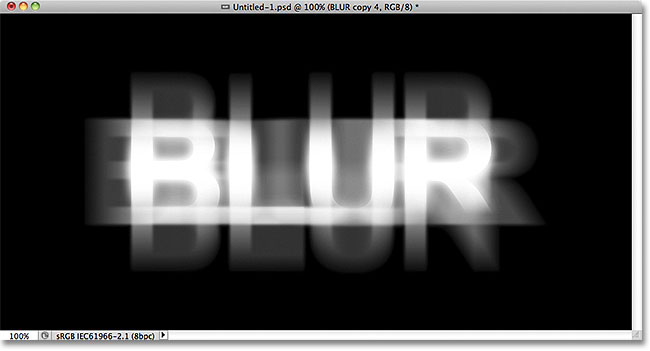
How to make Blurry Text with CSS

Its pretty easy to make some blurry text with CSS. We can do it by just making the text color transparent and adding some text shadow. Here’s the code for the same:

Blurry Text with CSS

To do it on the normal text we can create a class and use SPAN tag to make the text blurry.

Example: This text will be blurry!

HTML Code

<span >This text will be blurry!</span>

CSS Code

.blur{
    color: transparent;
    text-shadow: 0 0 3px rgba( 0, 0, 0, 0.5);
}

We can make the links blurry on hover by adding the blurry styles on a: hover pseudo-class.

<a href="" title="">This link text will be blurry on hover.</a>
a.blurry-links{
    color:red;
}
a.blurry-links:hover{
    color: transparent;
    text-shadow: 0 0 3px rgba( 0, 0, 0, 0.5);
}

You can always change the RGB values and the opacity for the text-shadow property and have the blurry text in a different colors.

Contact Us

Our Website Design Sevices.

jQuery CSS Class playground

Today we will play with jQuery CSS class methods such as addClass, removeClass, hasClass, and toggleClass and learn some basic implementation to modify the HTML styles on the fly.

jQuery CSS Class Methods:

Let’s understand this is a small piece of code. First things first, You must include the jQuery library in the <head>…</head>  tag.

<script src=PATH_TO_JQUERY/jquery.min.js></script>

Now our page has the jQuery library so let’s add some HTML and CSS to play with the jQuery CSS Class methods.

HTML Code:

<div id="elem">
  This is a content panel
</div>

<p>
  <a href="#" >addClass</a> /
  <a href="#" >removeClass</a> /
  <a href="#" >toggleClass</a> /
  <a href="#" >hasClass</a>
</p>

Here we have a DIV tag with ID set to element and we will use this ID to play with jQuery CSS class methods. Below that, we have a paragraph element and four links with different class names. Let’s write some CSS code and I will explain the functionality of each link when we add jQuery code.

 CSS Code

#elem{
	width: 400px;
	text-align: center;
	padding: 20px 0;
	background: #ffffff;
	border: 1px solid #ddd;
	margin: 100px auto 30px auto;
}

.hover{
	background: #cc0000 !important;
	color: #fff !important;
	border: 1px solid #990000 !important;
}

In the CSS styles, I’ve added some styles to our DIV#elem element and also created a class named hover which will change the background, color, and border of the DIV#elem.

Now let’s add some jQuery code and learn how these jQuery CSS methods work.

$(document).ready(function(){
	// Add the class
	$('a.add-class').click(function(){
		$("#elem").addClass('hover');
		$("#elem").html('Class added ".hover"');
		return false;
	});

	// Remove the class
	$('a.remove-class').click(function(){
		$("#elem").removeClass('hover');
		$("#elem").html('Class removed ".hover"');
		return false;
	});

	// Toggle the class and check if the class has been already added or not
	$('a.toggle-class').click(function(){

		$("#elem").toggleClass('hover');

		if($("#elem").hasClass('hover')){
			$("#elem").html('Class added ".hover"');
		}else{
			$("#elem").html('Class removed ".hover"');
		}

		return false;
	});

	// Checks if the class has been already added or not
	$('a.has-class').click(function(){

		if($("#elem").hasClass('hover')){
			$("#elem").html('Class found ".hover"');
		}else{
			$("#elem").html('Class not found ".hover"');
		}

		return false;
	});

});

In the JQuery code, I’ve used the click trigger for all four links we added in the HTML code above. Also, I’ve used return false;  so when we click on the link it should not redirect the user to any page or use # in the current page URL. Also, I’ve added another line of code to modify the HTML of the #elem element when we click on these links. Don’t get confused with the .html() method, this is not required, I just added it to explain the functionality.

The first link with class .add-class will add the .hover class to the #elem element. If you want to add multiple classes with one trigger you can specify different class names separated with a space as we normally do in normal HTML code. Once we click on this link, .hover class will be added to the #elem HTML element and the inner HTML will be changed and show us the result. You can click on the address link above and see it in action.

The second link with class .remove-class will remove the .hover class from the #elem element. If the element doesn’t have a .hover class, it won’t do anything so the remove class will be used only to remove any applied class.

The third link with class .toggleClass will toggle the .hove class on #elem element. If the element does not have a .hover class it will add the same otherwise vice versa. In this code, I’ve used the jQuery CSS method hasClass to check if the element has the .hover class or not. and the content of the #elem element is changed accordingly.

The fourth link will only check if the class .hover is applied to the #elem element or not and change the HTML code of the #elem element accordingly.

I hope this will clarify any doubts on using these methods, in case you have any questions or suggestions, please use the comments below to start a conversation on this topic.

contact us

Web development Services

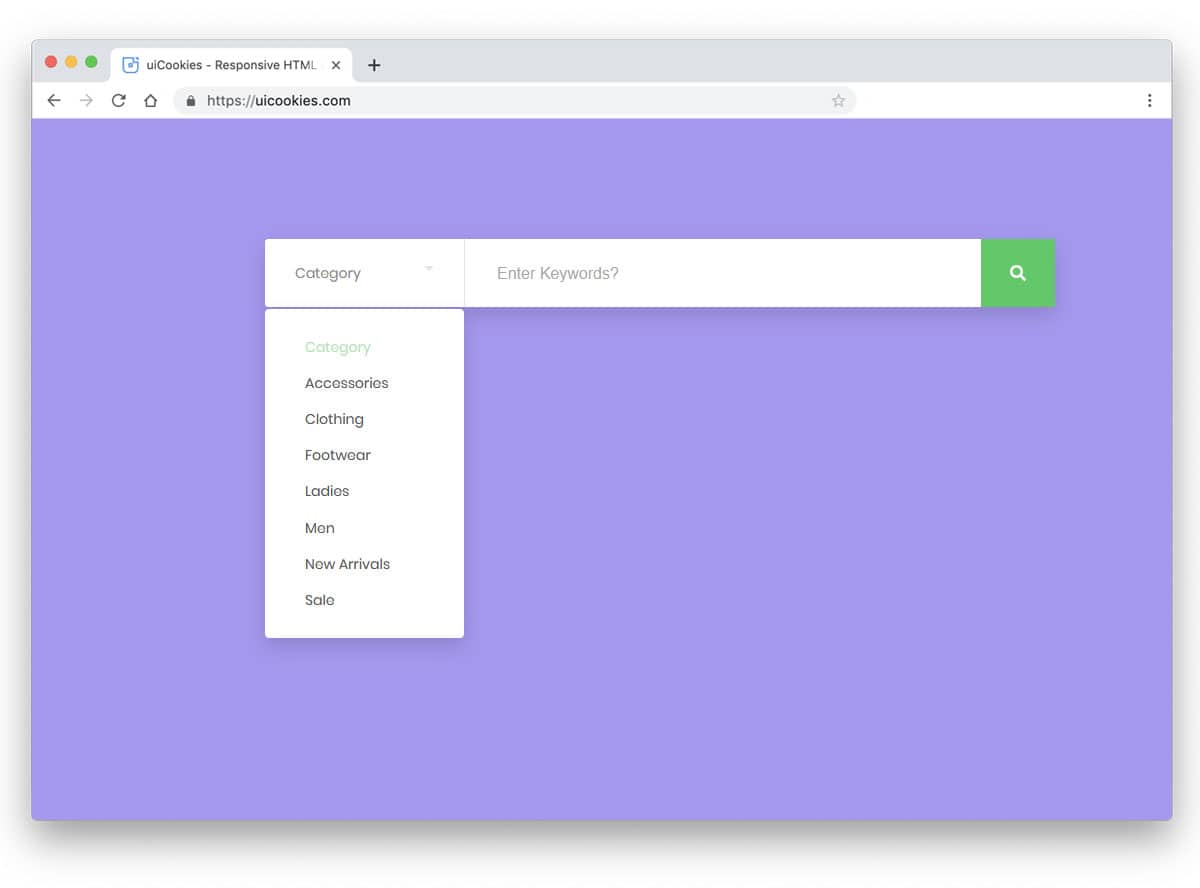
How to create a category-based search box with CSS and jQuery

There are a few times when we want our website visitors to search content in just one category and not the whole website. Today I am sharing a simple but effective UI trick to create a category-based search box with CSS and jQuery.

HTML

<div >
  <input type=text value="" placeholder="search:" />
  <div >
   <label><input type=radio name=filter value="value" /> Category One</label>
   <label><input type=radio name=filter value="value" /> Category Two</label>
   <label><input type=radio name=filter value="value" /> Category Three</label>
   <label><input type=radio name=filter value="value" /> Category Four</label>
   <label><input type=radio name=filter value="value" /> Category Five</label>
   <label><input type=radio name=filter value="value" /> Category Six</label>
  </div>
</div>

Now let’s just add some styles to out HTML code above.

CSS

#demo {
  width: 600px;
  margin: 100px auto 0 auto;
}
#demo .search-box {
  width: 100%;
  position: relative;
}
#demo .search-box input[type="text"] {
  width: 100%;
  padding: 10px;
  background: #fff;
  border: 1px solid #ddd;
  font-size: 12pt;
  margin: 0px;
}
#demo .search-box input[type="text"]:focus {
  box-shadow: none !important;
  outline: none !important;
}
#demo .search-box .search-filters {
  display: none;
  width: 100%;
  background: #fff;
  padding: 10px;
  border: 1px solid #ddd;
  border-top: 0px;
}
#demo .search-box .search-filters:after {
  content: "";
  display: table;
}
#demo .search-box .search-filters label {
  margin-bottom: 7px;
  font-size: 13px;
  display: inline-block;
  width: 50%;
  float: left;
}

You can use the above CSS or create your own styles by changing the backgrounds, colors etc.

Now let’s add the jQuery magic and make this piece of code look great

jQuery

Make sure you call the jQuery script on the page by adding this code on the page.

<img src=data:image/gif;base64,R0lGODlhAQABAIAAAAAAAP///yH5BAEAAAAALAAAAAABAAEAAAIBRAA7 data-wp-preserve="%3Cscript%20src%3D%22http%3A%2F%2Fcode.jquery.com%2Fjquery-1.11.0.min.js%22%3E%3C%2Fscript%3E" data-mce-resize="false" data-mce-placeholder="1" width=20 height=20 alt="<script>" title="<script>" />
<img src=data:image/gif;base64,R0lGODlhAQABAIAAAAAAAP///yH5BAEAAAAALAAAAAABAAEAAAIBRAA7 data-wp-preserve="%3Cscript%20src%3D%22http%3A%2F%2Fcode.jquery.com%2Fjquery-migrate-1.2.1.min.js%22%3E%3C%2Fscript%3E" data-mce-resize="false" data-mce-placeholder="1" width=20 height=20 alt="<script>" title="<script>" /><span id="mce_marker" data-mce-type="bookmark" data-mce-fragment="1">​</span>
jQuery(document).ready(function($){
  $('.search-box input[type="text"]').focus(function(){
    $('.search-filters').slideToggle();
  });
  $('.search-filters input[type="radio"]').on('click', function(){
    var placeholder_text = $(this).closest('label').text();
    $('.search-input').attr('placeholder', 'search: '+placeholder_text);
    $('.search-filters').slideToggle();
  });
});<span id="mce_marker" data-mce-type="bookmark" data-mce-fragment="1">​</span>
contact us

Like this code.

Our Services

How can Best Website Design help you to get More Business?

You can compare a website with the plant’s roots. As the root holds the whole plant to the ground and provides all the required nutrition and promotes the growth, in the same sense having the best-designed website work as root for your business which connects you with the world of the Internet and provides business. A successfully designed website will help to keep your business alive and establish it on the internet. This will attract more and more visitors and increase sales, visibility, and growth of your organization.

So, in simple lines, you need to have a website with a solid base and best designs so that you can open the doors of the internet for your business.  Hiring a professional website design company or custom website design company can help you to achieve this goal.

IoGoos Solution is a web design company and understands the importance of having SEO friendly website designs. A well-designed website provides benefits for your business:

Branding – With the help of good designs, your website creates a positive impression among your visitors and helps in building your brand image.

Increase in Conversation rate – It is not always possible for clients to visit your office for all deals, here your website is the platform which should be perfect to convert a visitor into a client and provide all relative information’s.

Online Marketing –  You need to not advertise yourself on TV or paper pamphlets. Your website can work as a promotion engine for your business.

Now, let us talk about how to build a website that should be perfect in all aspects:

Web Design Services in India – The Digital face of any Company

It can be compared to your drawing room which is the most important area of your home which should be perfect and well managed whenever any guest comes in. Just in the same way, the homepage of any website should be the center of the masterpiece. When any user searches for your product, they may land up on another page, but the overall look of the site is judged by the great looks of the website homepage and your web design company should focus on such things.

When the visitor comes on your website and they face trouble in finding what they need (maybe contact us section, or about the company, services, social media connections, or anything), the first thing will happen is that they will leave. Later they may say to others the same thing. Take an example of Flipkart & Amazon: Flipkart is much easier to use & well managed as compare with Amazon. We as being a creative web design company have knowledge of it. When it comes to designing a company website following things should be kept in mind:

  •  The homepage should answer “Who We Are? What We Do?  & What Can You Do Here?”.
  • It should be designed by taking the targeted customers’ groups in mind.
  • Website Homepage Design must be able to compel visitors so that they stick around.
  • The homepage should be mobile optimized.
  • Call to action feature should be there which tells the user what should be his or her next step to connect with you or buy any product.
  • It shouldn’t always be the same
 The website Homepage must be in continuous change as per the specific occasion. Like in Diwali, Holi or Eid it should have some touch of that festival to make it more live and attractive
  • Your website should be up to the market standards and build trust, communicate your organization values and navigate users for the next step.
  • You must use the right colors & images, perfect layout, whitespace, and other necessary elements to make it more user-friendly & beautiful.
  • By adding a website travel guide you can help users to understand about features and sections of your website.
  • Until the market doesn’t know about your website, it is of no use. It is a must to promote your website so that you can start getting traffic. Use methods of SEO, pay per click (PPC) or social media marketing to see fast and best results. Online Promotion should be an essential part of your business from the beginning.

IoGoos Solution offers the top web design services in India & can help you to design the best website with the perfect homepage which can hold your visitors and convert them to customers.

User-Centric Website Designing

If you are looking for website designing and want to make it as per your specific targeted audience with the best looks, you should adopt the best UI/ UX designers to provide the best user experience.

UI and UX are not the same things but yes, they are interconnected and approx. same in nature. This use to check if your website is built by considering the user-centric environment. They are tools that help in designing a beautiful masterpiece, provide easy navigation to visitors & high functionality of your website. This attracts more and more visitors from your targeted market area towards your webpage and holds visitors for a longer duration by encouraging them to visit one page to another.

While creating UX designs, one should focus on sections like layout creation for menu and homepage, allocating buttons positions, providing easy navigation, shopping cart usability, and other website related tools that visitors may need. Later for more encouragement of users, UI designers provide a simple and interacting interface so that your website can easily communicate with the user. It referees to the uses of visually appealing and contains sections like buttons, links, and other tools.

IoGoos Solution is an affordable website design company that can help you to build a successful Web Design Services.

Enquiry Now

When We Work Together

We can create something incredible

arrow
HQ INDIA
HQ INDIA
C-31, Milap Nagar,
Uttam Nagar, New Delhi,
Delhi 110059
USA
USA
6715 Backlick Rd Suite 202
Springfield,
VA 22150, USA
AUSTRALIA
AUSTRALIA
2/51, Lane Cres,
Reservoir, VIC
3037, Australia
CANADA
CANADA
61 Payzant Bog Road, Falmouth, NS, B0P 1P0, CANADA
UK
UK
3rd Floor, 131 City Road, London, EC1V 2NX, United Kingdom
UAE
UAE
Boutik Mall, Al Reem Island - Abu Dhabi, UAE
X

Let Us Call You Back

  • India+91
  • United States+1
  • United Arab Emirates+971

Your phone number is kept confidential
and not shared with others.